

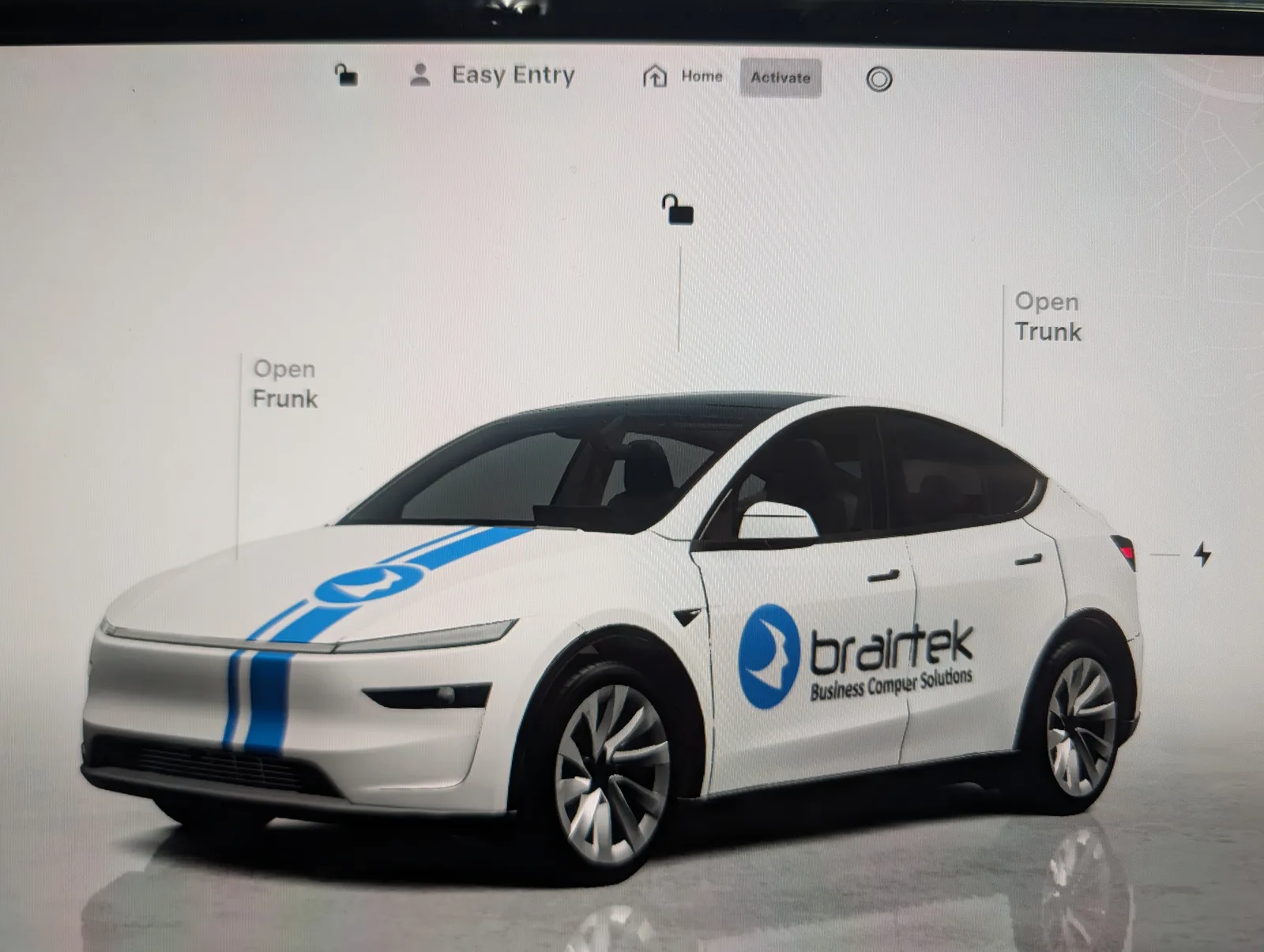
The 3D car on your Tesla’s touchscreen — the one you tap to open the trunk — can wear a custom paint job. Tesla publishes official wrap templates, and the car will happily load your own design from a USB stick. I have a Model Y, and since our real service fleet is wrapped in Braintek branding, I wanted the avatar on my screen to match.
Here’s the full process, including the two things the official docs don’t warn you about.
Step 1 — Download the template for your exact car
Tesla publishes the wrap templates on GitHub:
github.com/teslamotors/custom-wraps
Download the template for your model — but be aware there are multiple versions of the same model. There are several different Model Y templates, and I had to experiment with a few before I found the one that matched my car. If your finished wrap ends up looking warped or misplaced, this is why.
Step 2 — Design your wrap (AI makes this easy)
The template is a flat PNG that unwraps the car’s body panels. I brought it into Illustrator, added our logo, stripes, and lettering, and exported the finished design as a PNG.
No Illustrator? Try Grok or another AI image tool: give it the template plus your logo and ask it to lay out your branding on the panels. Keep the output at the template’s exact dimensions so everything maps to the right body panel.
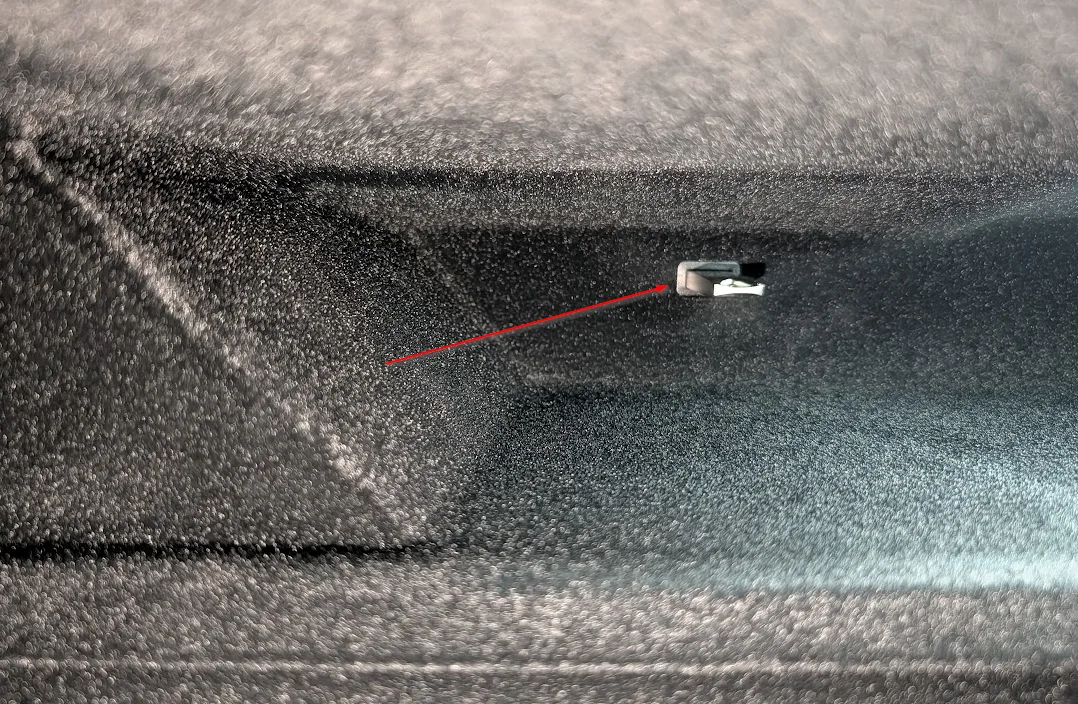
Step 3 — Find the USB stick in the glove box
Your Tesla already has a USB stick — it’s in the glove box, plugged into the port that records dashcam footage.
Note: I first tried a USB stick in the center-console side port. That does not work — the car only reads wraps from the glove box USB.
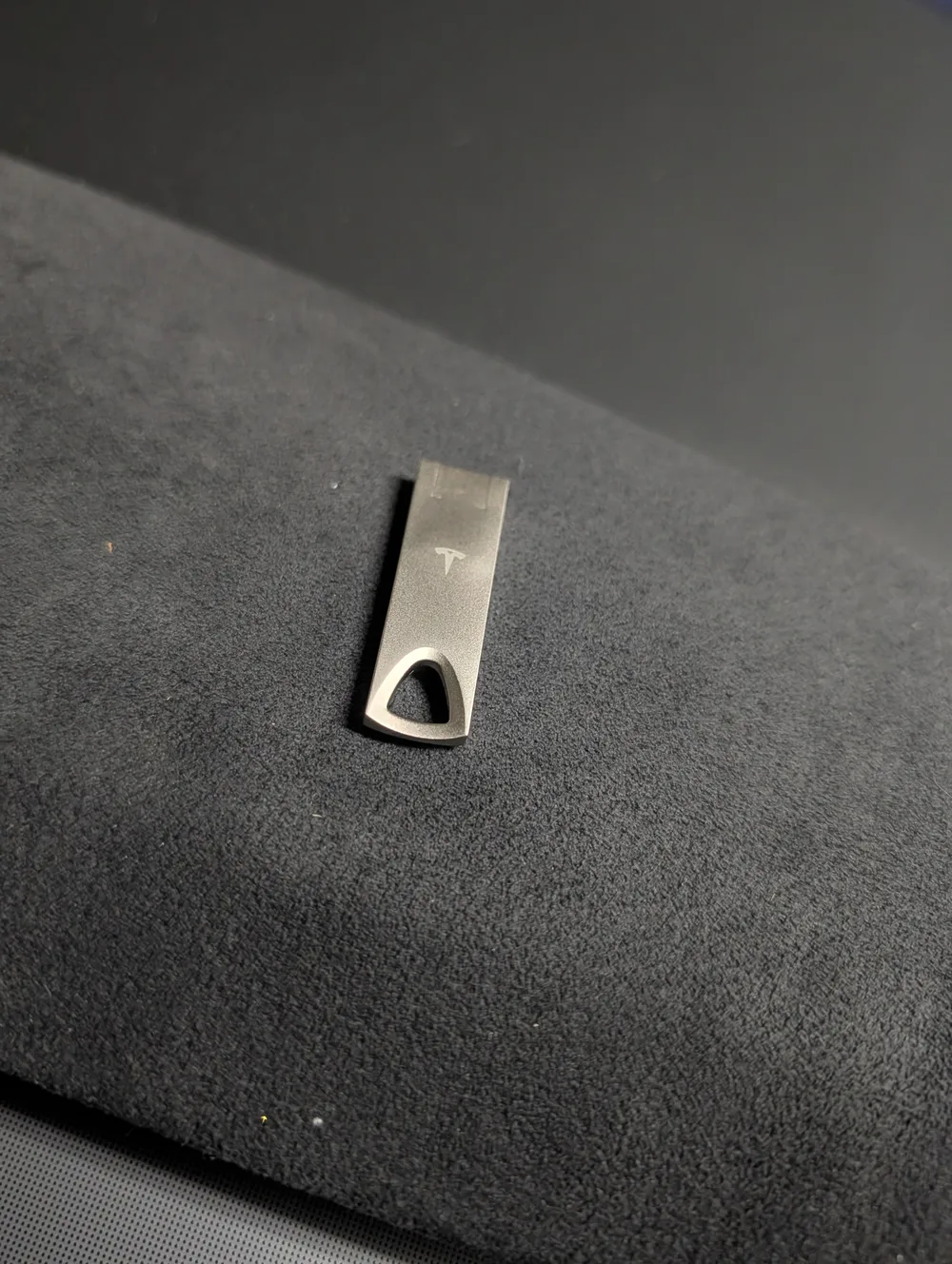
Step 4 — Create a Wraps folder
Plug the stick into your computer, create a folder named Wraps, and drop your PNG inside.
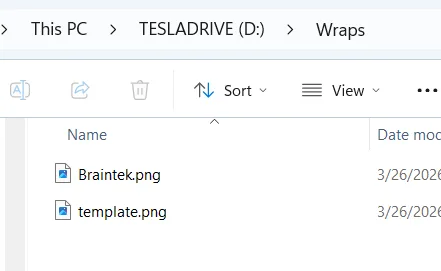
Then put the stick back in the glove box port.
Step 5 — Apply it in the Toybox
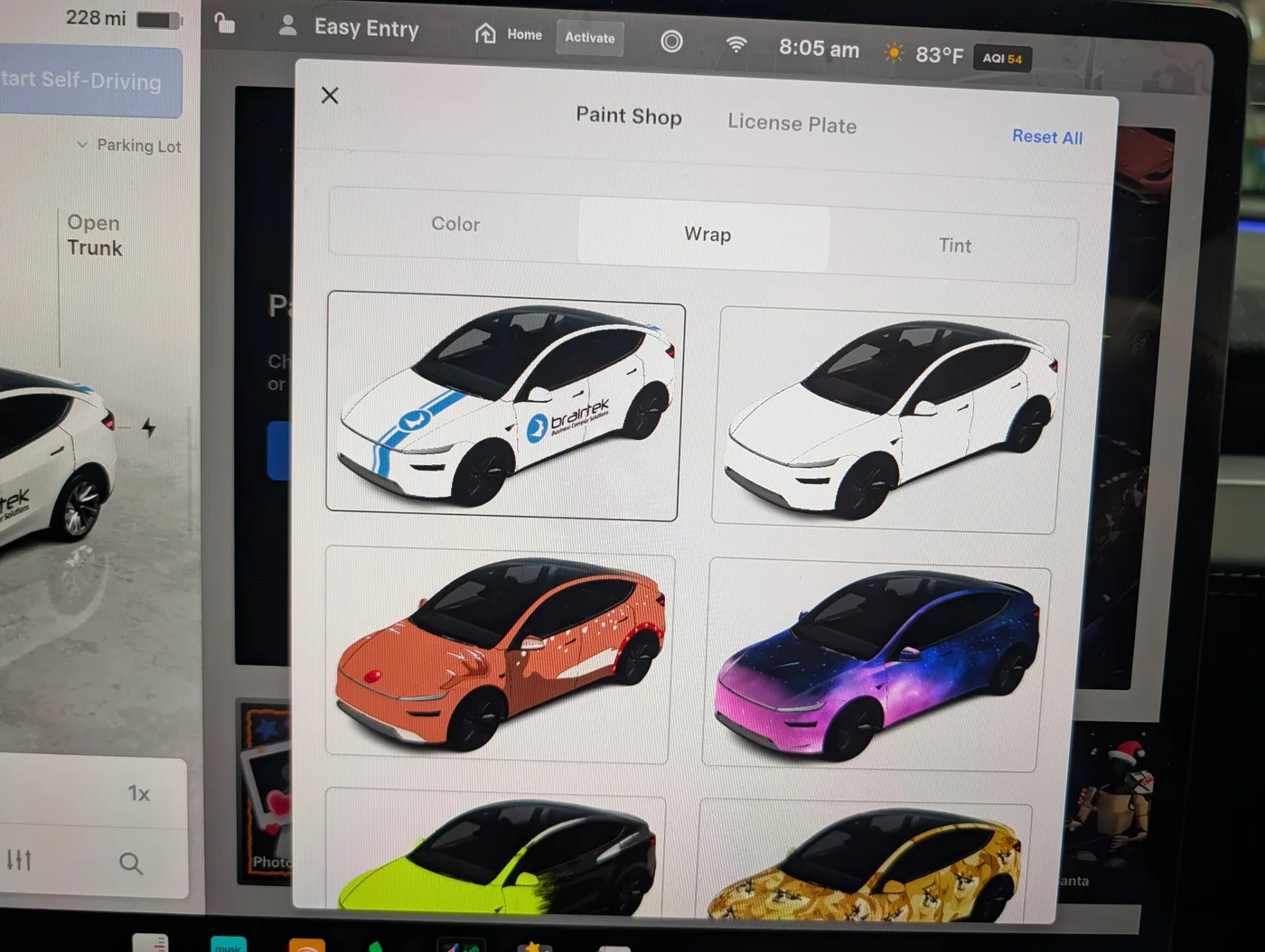
On the touchscreen, open the Toybox and choose Paint Shop, then tap Customize.
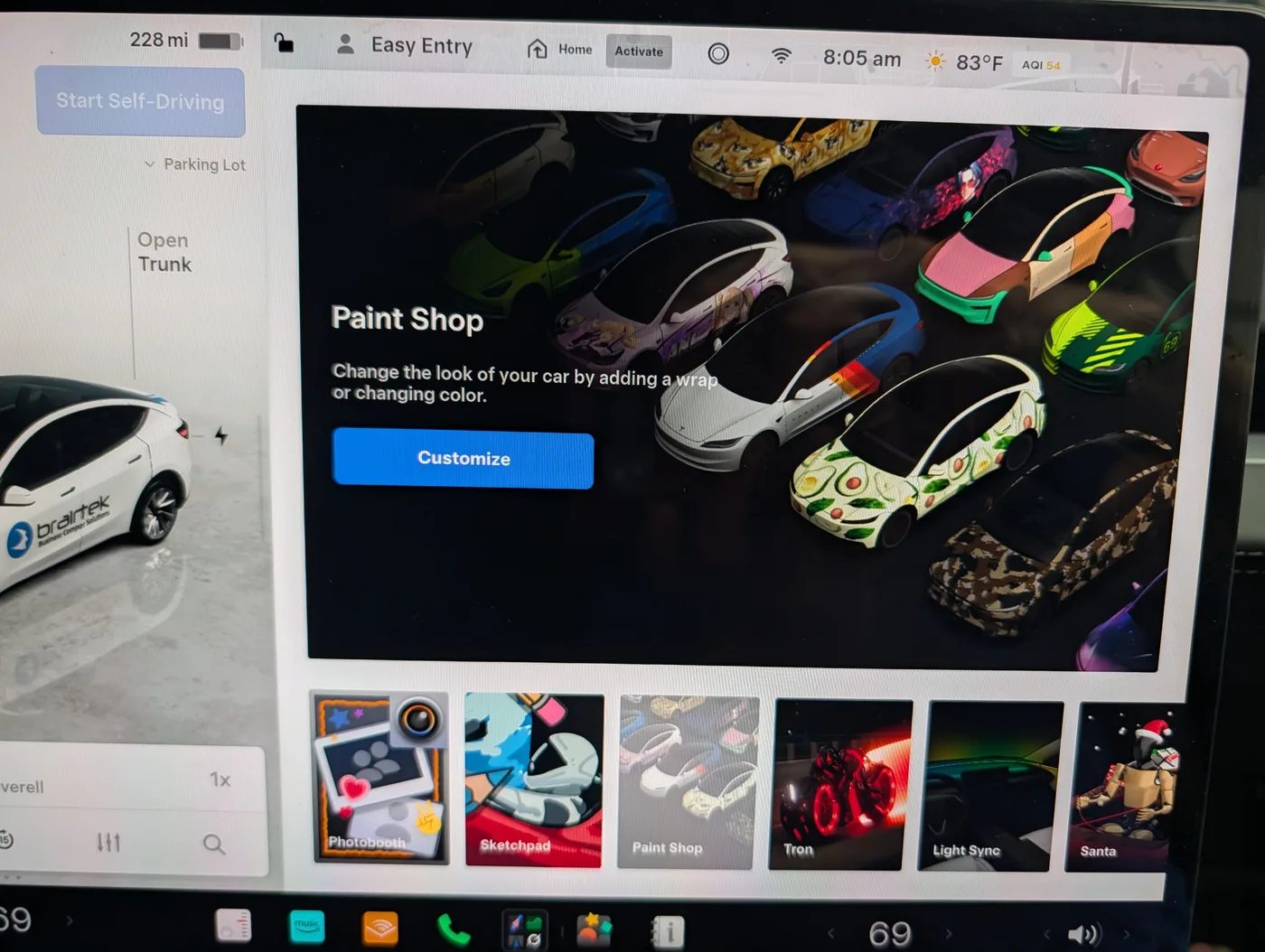
Select the Wrap tab and pick your design. If the image looks weird on the car, you have the wrong car template — go back to the GitHub folder, download a different variant of your model, and try again until the panels line up.
The result
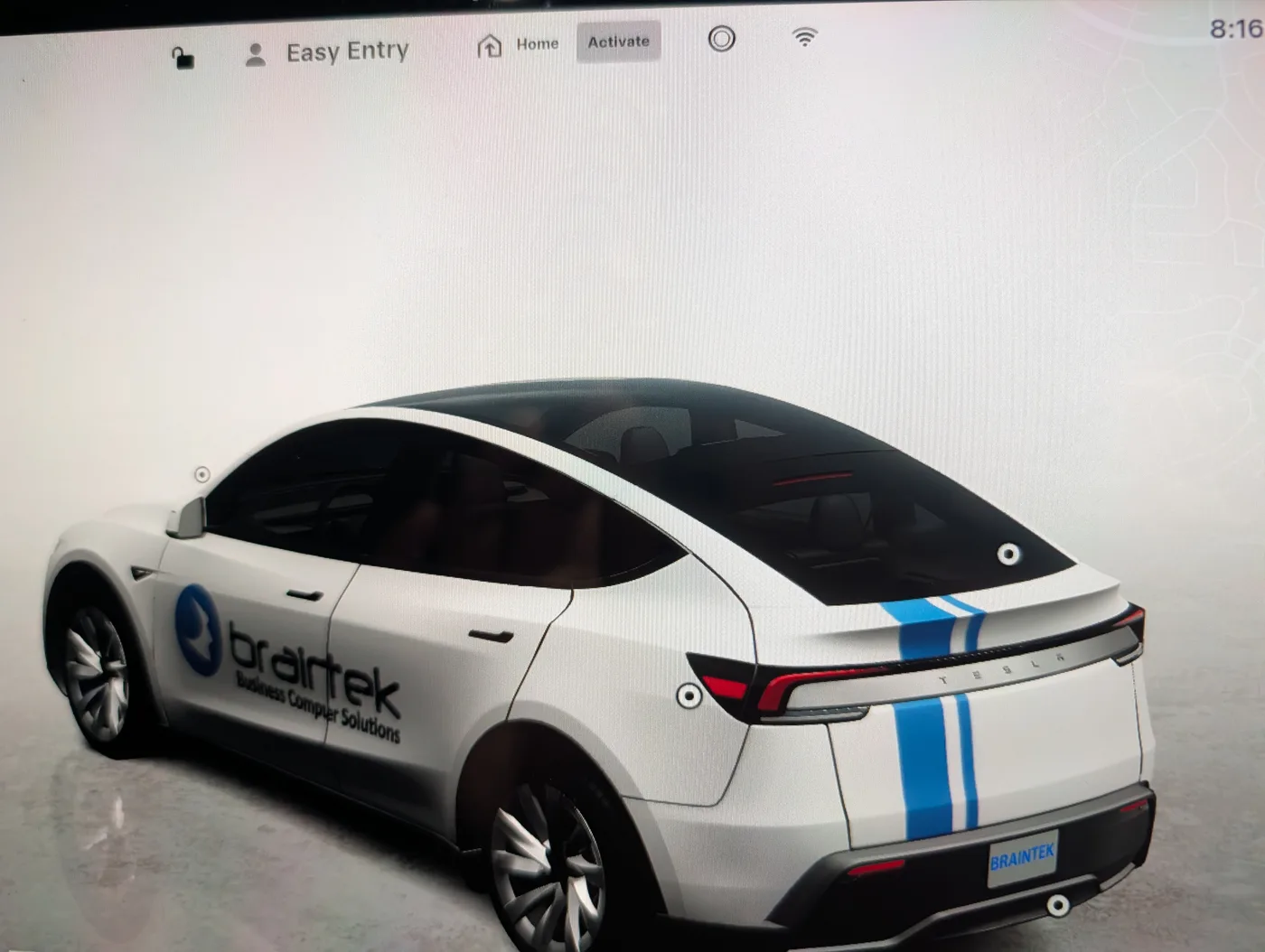
Every time I open the trunk from the screen, the car matches the ones our techs actually drive. Zero risk, ten minutes of effort once you have the right template, and completely reversible from the same menu.
Have fun, happy customizing!