
Most people know four or five Windows shortcuts and mouse their way through everything else. The shortcuts below are grouped by task, so you can find the one you need without reading past fifty you will never use.
The ten worth learning first
If your team only ever adopts ten of these, make it these. They cover the things people do dozens of times a day.
| Shortcut | What it does |
|---|---|
| Win + Shift + S | Screenshot any part of the screen |
| Win + V | Clipboard history, not just the last copy |
| Win + L | Lock the PC when you step away |
| Win + E | Open File Explorer |
| Alt + Tab | Switch between open apps |
| Win + Left / Right | Snap a window to half the screen |
| Ctrl + Shift + Esc | Task Manager, directly |
| Win + D | Show the desktop |
| Win + . | Emoji and symbol panel |
| Win + X | The power user menu |
Win + L is the one worth pushing hardest. An unlocked, unattended machine is one of the easiest ways for a visitor to reach whatever the logged-in user can reach, and it is the single cheapest security habit a team can build.
Everyday essentials
| Shortcut | What it does |
|---|---|
| Win | Open or close the Start menu |
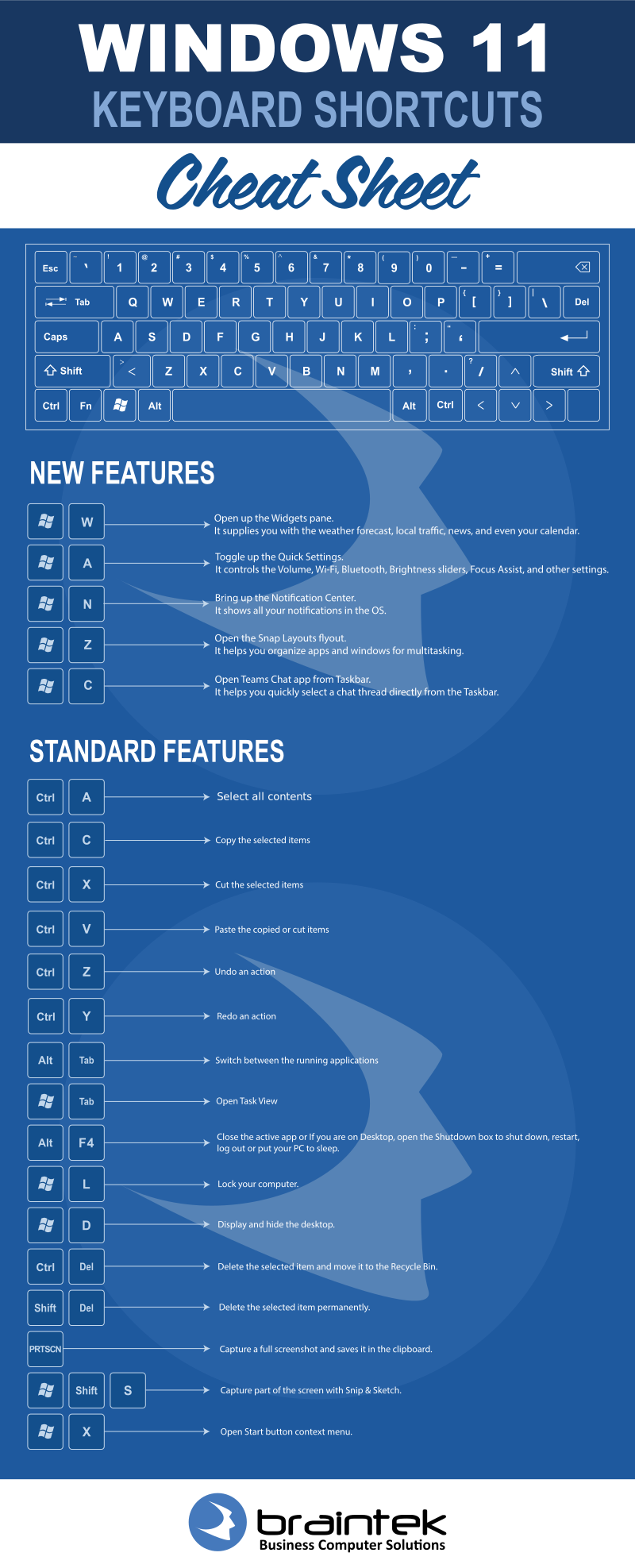
| Win + A | Open Quick Settings (Wi-Fi, volume, brightness) |
| Win + N | Open the Notification Center and calendar |
| Win + I | Open Settings |
| Win + E | Open File Explorer |
| Win + D | Show or hide the desktop |
| Win + L | Lock your PC |
| Win + . | Open the emoji and symbol panel |
| Win + V | Open clipboard history |
| Win + S | Open Search |
| Win + R | Open the Run dialog |
| Win + X | Open the Quick Link (power user) menu |
Screenshots and snipping
| Shortcut | What it does |
|---|---|
| Win + Shift + S | Open Snipping Tool to capture part of the screen |
| Print Screen | Capture the entire screen to the clipboard |
| Win + Print Screen | Save a full screenshot to the Pictures folder |
| Alt + Print Screen | Capture only the active window |
| Win + G | Open Game Bar, which can also record any window |
| Win + Alt + R | Start or stop a screen recording |
That last pair is useful well outside gaming. If someone is trying to describe a problem they cannot reproduce on demand, having them record thirty seconds of it is faster than three rounds of email.
Window management and snap layouts
| Shortcut | What it does |
|---|---|
| Win + Z | Open Snap Layouts for the current window |
| Win + Left / Right | Snap the window to the left or right half |
| Win + Up / Down | Maximize, restore, or minimize the window |
| Win + Shift + Left / Right | Move the window to another monitor |
| Win + Home | Minimize everything except the active window |
| Win + Tab | Open Task View (all open windows and desktops) |
| Alt + Tab | Switch between open apps |
| Ctrl + Alt + Tab | Keep the app switcher open to pick with arrows |
| Win + number (1 to 9) | Open or switch to the app in that taskbar position |
| Win + T | Cycle through taskbar apps |
Virtual desktops
| Shortcut | What it does |
|---|---|
| Win + Ctrl + D | Create a new virtual desktop |
| Win + Ctrl + Left / Right | Switch between virtual desktops |
| Win + Ctrl + F4 | Close the current virtual desktop |
| Win + Tab | See every desktop at once |
Virtual desktops are underused in most offices. One desktop for the work that needs focus and one for email and chat is a simple way to stop the second from constantly interrupting the first.
File Explorer
| Shortcut | What it does |
|---|---|
| Win + E | Open File Explorer |
| Ctrl + N | Open a second Explorer window |
| Ctrl + Shift + N | Create a new folder |
| Alt + Up | Go up one folder level |
| Alt + Left / Right | Back and forward |
| F2 | Rename the selected file |
| Ctrl + Shift + E | Expand the folder tree to the current folder |
| Alt + Enter | Open Properties for the selected item |
| Ctrl + Mouse wheel | Change the view size |
| Shift + Delete | Delete permanently, skipping the Recycle Bin |
System, display and accessibility
| Shortcut | What it does |
|---|---|
| Ctrl + Shift + Esc | Open Task Manager directly |
| Win + P | Choose a presentation or second-display mode |
| Win + K | Open Cast to connect to a wireless display |
| Win + Plus / Minus | Zoom in and out with Magnifier |
| Win + Esc | Close Magnifier |
| Win + U | Open Accessibility settings |
| Win + Ctrl + Enter | Start Narrator |
| Win + H | Start voice typing |
| Win + Pause | Open System information |
Win + P is the one that quietly saves the most support calls. Most “my projector is not working” tickets in a conference room are a display mode set to the wrong option, and it is a two-second fix if the person knows the shortcut.
Universal editing shortcuts
These work in almost every Windows application, not just Microsoft ones.
| Shortcut | What it does |
|---|---|
| Ctrl + C / X / V | Copy / Cut / Paste |
| Ctrl + Shift + V | Paste without formatting, in most modern apps |
| Ctrl + Z / Y | Undo / Redo |
| Ctrl + A | Select all |
| Ctrl + F | Find |
| Ctrl + S | Save |
| Ctrl + P | |
| Ctrl + W | Close the current tab or document |
| Ctrl + Left / Right | Move the cursor one word at a time |
| Ctrl + Shift + Left / Right | Select one word at a time |
| Home / End | Jump to the start or end of the line |
Print it and pin it
The PDF below puts the core sheet on one page. Print it, put it where people can see it, and the shortcuts your team actually needs will stick within a couple of weeks. Handing it to new hires on day one works even better, because nobody has built a mouse habit yet.
Still running Windows 10 on some machines? Microsoft ended support in October 2025, so those PCs are no longer getting security updates. If you are not sure where your fleet stands, that is worth a conversation about the upgrade path before it becomes an insurance or compliance question.
More Microsoft shortcuts: Excel · Word · Outlook · PowerPoint · Windows 10