

How to Connect Bluebeam Revu to AI (Claude or ChatGPT)
Bluebeam Revu 21.9 and later includes a built in MCP server that lets an AI assistant such as Claude or ChatGPT work directly on the drawing you have open. You type a plain English request, and the AI places markups, reads page content, searches the set, and reports back on what it did. It requires a Bluebeam Max subscription and takes about ten minutes to turn on.
A construction client asked us whether this was real or marketing, so we installed it and tested it on a warehouse floor plan. It is real. Below is the setup, what happened in our test, and what a Houston or Dallas-Fort Worth firm should have in place before the whole team starts using it.
What is the Bluebeam MCP?
MCP stands for Model Context Protocol. It is a standard way for an AI assistant to use another program’s features instead of only chatting about them. Bluebeam’s version exposes more than 40 Revu tools to the AI, covering markups, document analysis, markup status workflows, measurements, hyperlinks, bookmarks, custom columns, and Studio project search.
In practice it means the difference between asking an AI “how do I add callouts in Bluebeam?” and telling it “add callouts for the conference rooms, restrooms, and exterior exits on page 1” and watching them appear.
What do you need before you start?
- Revu 21.9 or later, desktop version. The web and mobile apps are not supported.
- A Bluebeam Max subscription. The MCP is not included in the lower plans.
- An internet connection. Offline licenses cannot use it.
- A supported AI client. Bluebeam lists Claude, ChatGPT, GitHub Copilot CLI, and AnythingLLM.
How do you turn on AI in Bluebeam Revu?
- In Revu, open the Revu menu and choose Preferences.
- Select Admin, then the MCP tab.
- Check MCP Enabled, then check the AI client you use.
- Restart the AI client so it picks up the new connection.
- Confirm Bluebeam shows up in the client’s connector list. In Claude Desktop for Windows that is Settings, then Connectors.
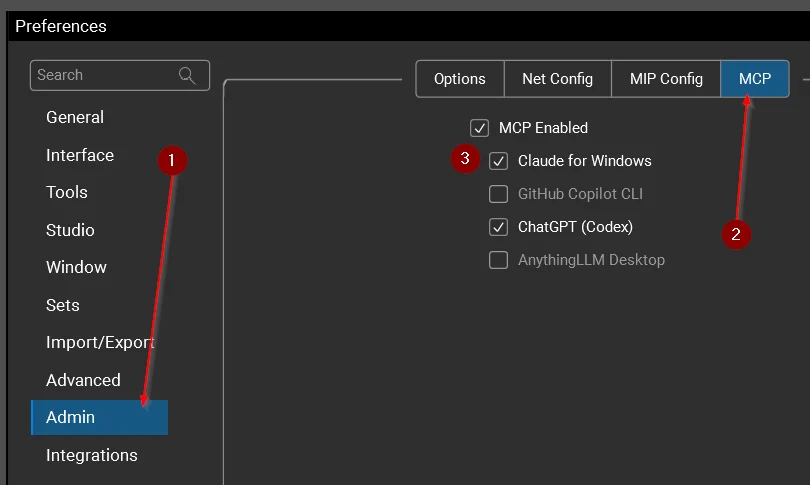
Screenshot of Bluebeam Revu preferences from our test install.
Then open a PDF in Revu, tell the AI which file you are working on, and ask for something.
What happened when we tested it?
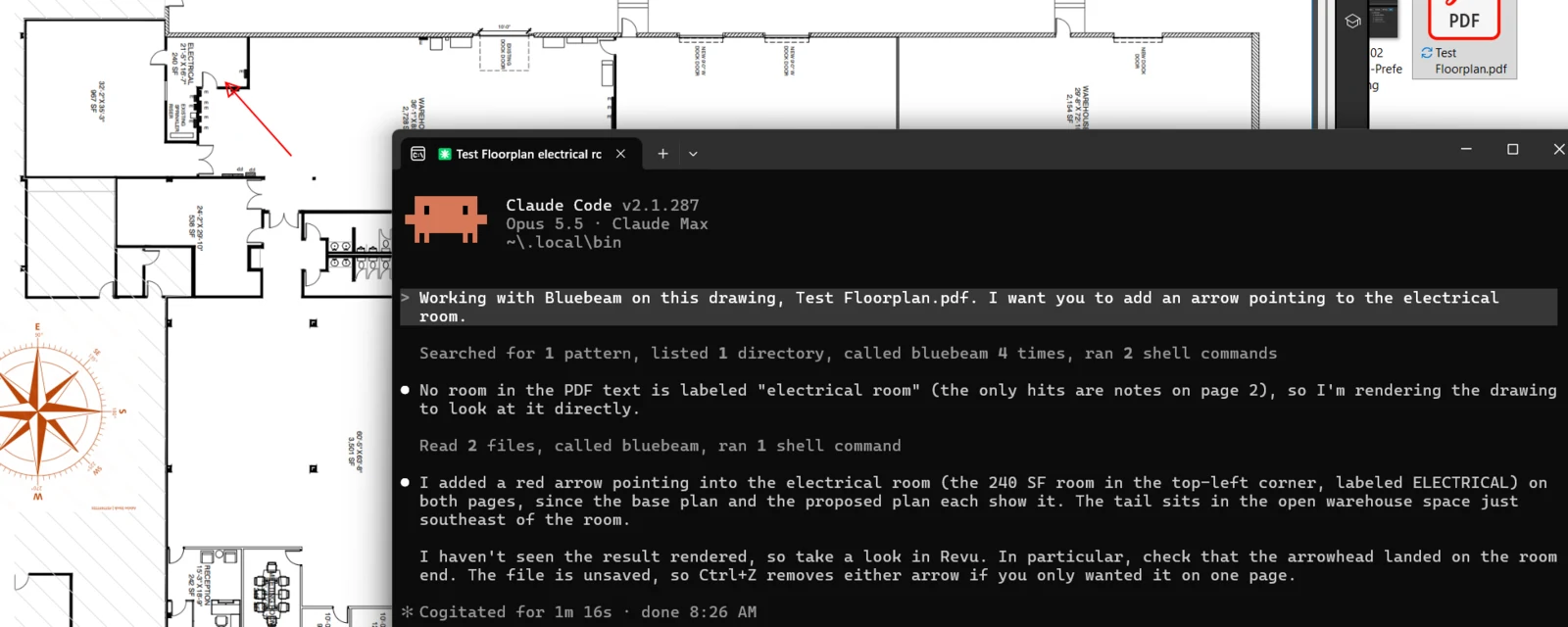
Test one: a single arrow. We asked Claude to add an arrow pointing to the electrical room on a two page floor plan. The PDF had no searchable text label for that room, so the AI rendered the drawing, found the 240 square foot room labeled ELECTRICAL by reading the image, and placed a red arrow on both pages. It took a little over a minute. It also told us it had not visually confirmed the result and that the file was unsaved, so Ctrl+Z would remove the arrow.
Test two: a batch of callouts. We asked for callouts on the conference rooms, restrooms, and exterior exits. It placed seven, matched the font and color of a callout already on the sheet, and then listed three judgment calls for us to check: an unlabeled room it chose not to tag, overhead dock doors it did not count as exits, and doors that appeared to open into a neighboring tenant’s space.
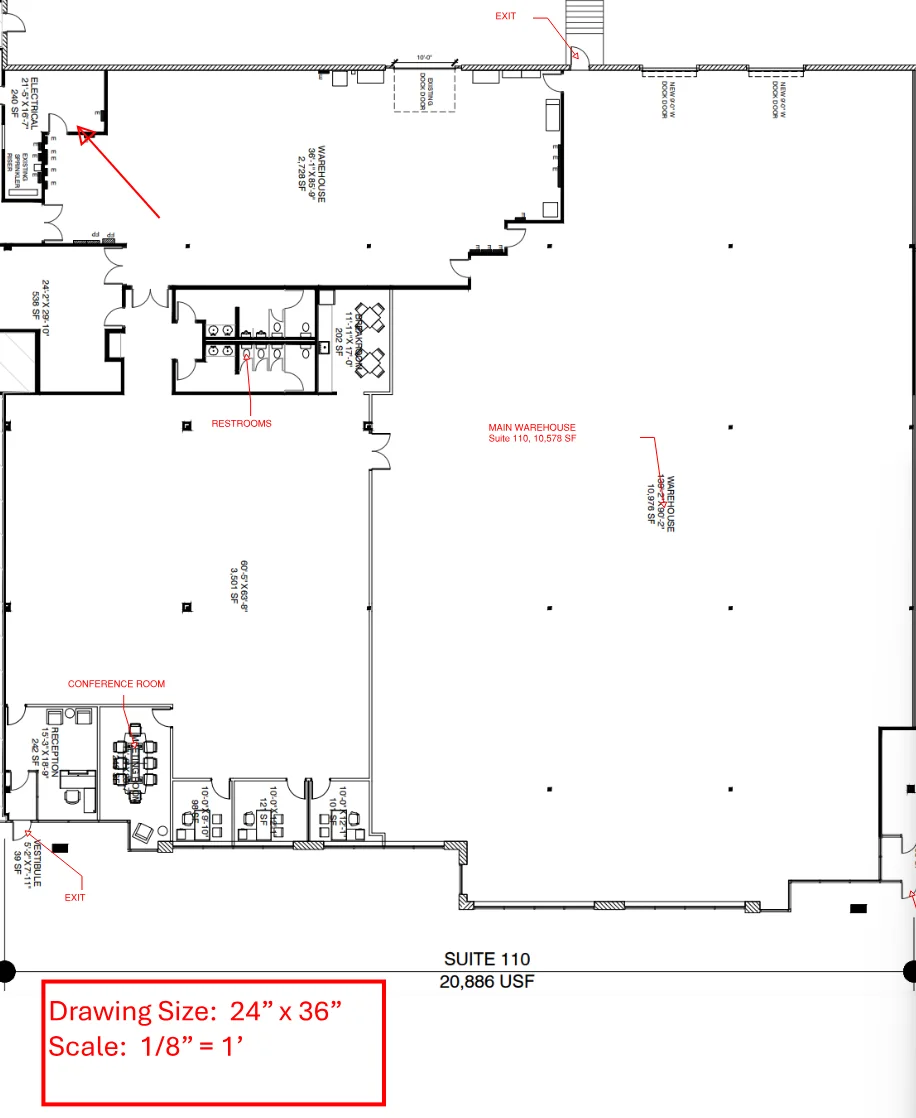
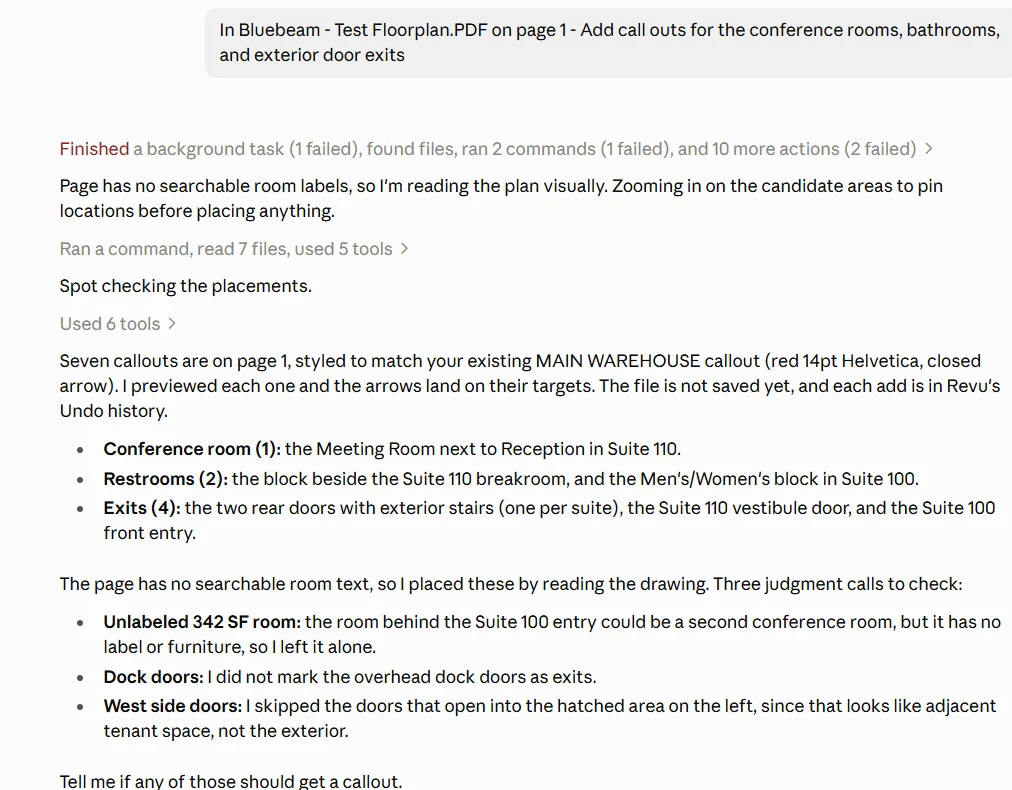
Screenshots from our test on a sample warehouse floor plan.
That last part is the useful lesson. The AI did competent first pass work and was upfront about what it was unsure of. It did not replace the person who knows the building.
Where does it help a construction or engineering team?
The best fits are the repetitive, rules based passes that eat an afternoon:
- First pass markups for exits, rooms, equipment, or fixture types across a sheet set
- Summarizing every open markup on a set by status, author, or trade
- Searching a Studio project for a detail or spec reference
- Building bookmarks, page labels, and hyperlinks on a new drawing set
- Cleaning up markup statuses and custom columns before a submittal goes out
Bluebeam also publishes a library of example prompts in its community knowledge base, which is a good place to start.
Is it safe to put project drawings through AI?
Bluebeam states that the MCP server runs locally on your machine and sends only the text and metadata needed to complete the request. That is a reasonable design, but it does not settle the question for your firm. Four things still need an answer:
- Which AI account is connected? A personal ChatGPT or Claude login has different data terms than a business plan. You may need to opt out of model training yourself.
- What do your contracts say? Owner agreements, NDAs, and government or critical infrastructure work can restrict where drawings are allowed to go.
- Who can turn it on? The setting lives under Admin preferences. Decide whether that is every estimator and PM or a pilot group.
- Who reviews the output? AI placed markups need a named human reviewer before anything is issued, the same as work from a new hire.
We covered the policy side in more depth in our guide to automating RFIs, change orders, and invoices with AI and in the AI acceptable use policy template.
How can a Houston or Dallas IT provider help?
Turning the feature on is the easy part. Rolling it out so it saves hours without creating a data problem is the real work, and it is the kind of work Braintek does for construction companies and engineering and architecture firms across Houston and Dallas-Fort Worth:
- Confirming Revu versions and licensing across your workstations
- Setting up business tier AI accounts with the right data protections
- Writing the short policy that says which drawings and projects are in bounds
- Training estimators, PMs, and drafters on prompts that work
- Applying the same guardrails to the AI connectors arriving in your other design, estimating, and accounting tools
If your team runs Bluebeam and you want to know whether this is worth piloting, our AI services team can walk through it with you.