

Passkeys for Small Business: A Plain English Guide
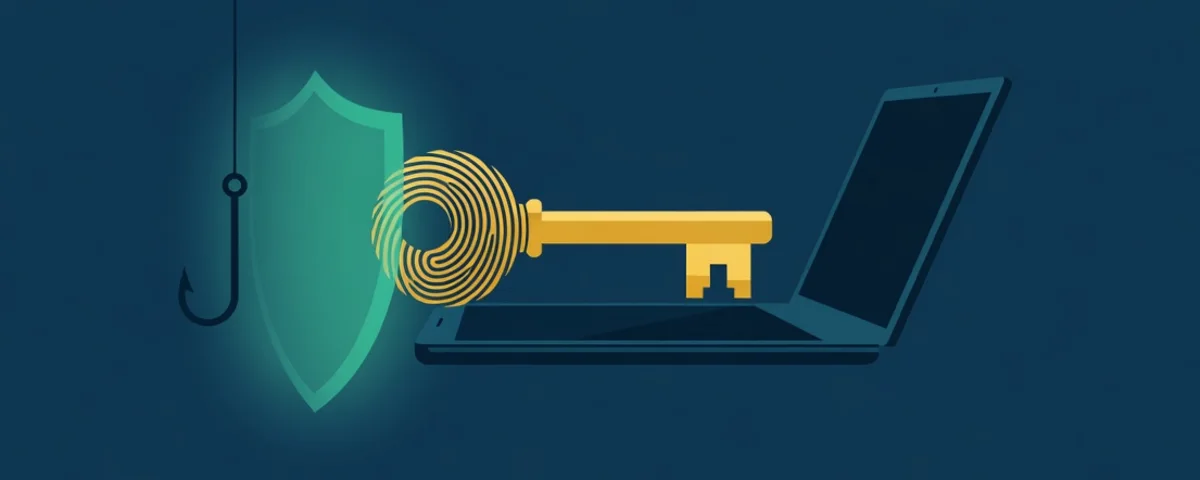
A passkey is a sign-in that replaces your password with your phone or computer itself. You unlock it with your face, fingerprint, or PIN, and it only works on the real website it was created for. That last part is why passkeys matter: a fake login page cannot collect a passkey the way it collects a password and a six digit code. For a small business, they are the most practical way to shut down the phishing attacks that lead to stolen mailboxes and fake invoices.
Passkeys work today in Microsoft 365, Google Workspace, and on Apple, Android, and Windows devices. In Microsoft Entra ID they are included in every edition, including the free one, so there is no extra license to buy. The work is in the rollout, not the price.
What is a passkey, exactly?
When you create a passkey, your device makes a matched pair of keys. The private key stays on your device. The public key goes to the website or app. When you sign in, the site sends a challenge, your device signs it with the private key after you unlock it, and the site checks the signature against the public key it has on file.
Nothing secret ever travels to the website or sits in its database. If the service is breached, there is no password there for anyone to steal.
There are two kinds:
- Synced passkeys are backed up to a passkey provider, such as Apple Passwords (iCloud Keychain) or Google Password Manager, and follow you to your other devices. Apple and Google both encrypt that sync end to end.
- Device-bound passkeys live on one device and never leave it. A passkey in the Microsoft Authenticator app or on a hardware security key works this way.
How is a passkey different from a password plus an MFA code?
Multifactor authentication (MFA) was a big step up from passwords alone, and if you have not turned on MFA in Microsoft 365 yet, start there. But a password plus a text message code or an app code has a weakness: a person can be tricked into handing both over.
The common attack today looks like this. An employee gets an email that looks like a Microsoft or DocuSign notice. The link opens a convincing login page. They type their password, then the code from their phone. The fake page passes both to the real Microsoft site in real time, and the attacker is now signed in to their mailbox. Microsoft describes this directly: remote phishing aims to “steal or relay” passwords, SMS codes, and email codes. This is how many of the attacks that log in instead of breaking in start.
A passkey has nothing to type, so there is nothing to hand over. It also counts as multifactor sign-in by itself: something you have (your phone or computer) plus something you are or know (your face, fingerprint, or PIN). That is why Microsoft lists passkeys as a phishing-resistant MFA method rather than a replacement for MFA.
Why can’t a phishing site steal a passkey?
Because every passkey is tied to the exact web address it was created for. Your device checks the address before it will use the passkey. A lookalike site at a slightly different address gets nothing, no matter how real it looks or how rushed the employee feels.
Microsoft calls passkeys “almost impossible to phish” for this reason, and lists them among its phishing-resistant sign-in methods. The person also has to be physically present to unlock the passkey with a face, fingerprint, or PIN, so an attacker cannot quietly use it from somewhere else.
Where can a small business use passkeys today?
Microsoft 365 and Entra ID. Admins turn passkeys on in the Microsoft Entra admin center under Authentication methods, then choose which passkey types to allow and which groups get them. Staff can use synced passkeys from Apple or Google, a passkey in the Microsoft Authenticator app, or a hardware security key. Admins can also require a passkey for sensitive apps through a Conditional Access policy.
Google Workspace. Users can add passkeys and use them as their second step today. An admin can also allow users to skip the password entirely and sign in with just a passkey. That setting is off by default and lives in the Google Admin console under Security, Authentication, Passwordless.
Apple, Android, and Windows devices. iPhones, iPads, and Macs store passkeys in Apple Passwords. Android phones store them in Google Password Manager, and Chrome can use those passkeys on Windows and Mac. Password managers such as 1Password and Bitwarden can also hold passkeys. And when a passkey lives on your phone, you can still sign in on a computer by scanning a QR code with the phone.
Your other business apps. Many business apps let staff sign in with their Microsoft or Google account. When they do, the passkey protects those apps too, because the sign-in happens at Microsoft or Google. For apps with their own separate logins, check each vendor. Support is growing but uneven.
What are the downsides of passkeys?
Lost or replaced phones. A synced passkey comes back when the person signs in to their Apple or Google account on the new phone. A passkey in Microsoft Authenticator is bound to that one phone, so a new phone means registering a new passkey. Plan for this before it happens. Have every user register at least two sign-in methods, and know how you will get someone back in. In Microsoft 365, an admin can issue a Temporary Access Pass, a time limited code that lets a person sign in once to set up a new passkey.
Shared accounts. Passkeys are built for one person per account. Shared logins, like a front desk mailbox or a vendor portal everyone uses, are a poor fit and a security risk on their own. Apple does let people share passkeys through Shared Groups in the Passwords app, and a business password manager can also share some credentials. The better fix is usually to give each person their own account, or to use a shared mailbox that people open with their own sign-in.
Older apps and devices. Some older software, line of business apps, and devices only understand a password. Older phones may not support passkeys at all. Microsoft Authenticator passkeys, for example, need iOS 17 or Android 14 or later. Find these before you require passkeys, or you will lock people out of something they need on a Monday morning.
Personal phones. If staff use their own phones, a synced passkey goes into their personal Apple or Google account. That is convenient, but it means the passkey follows that account, not your company. Decide whether that is acceptable for each group of users, especially admins and anyone who approves payments.
How do you roll out passkeys in a small business?
Go in stages, not all at once.
- Inventory first. List the apps your team signs in to, which ones use Microsoft or Google sign-in, which shared accounts exist, and which phones are too old.
- Start with admins and money people. IT admins, owners, and anyone who approves wires or changes vendor bank details are the biggest targets. Microsoft recommends hardware security keys or Authenticator passkeys for high-privilege users.
- Pilot with a small group. Pick a handful of willing people, turn passkeys on for just their group, and learn where the friction is.
- Open it to everyone, but keep MFA as the backup. Let staff register passkeys while their current MFA still works. Show them how in a short session.
- Require passkeys where it matters most. Once most people are enrolled, use Conditional Access in Microsoft 365 to require phishing-resistant sign-in for email, finance apps, and admin portals. Keep a written recovery process for lost phones.
Most offices can get through the first three stages in a few weeks. The last stage depends on how many older apps and shared accounts you have to clean up first.
How can Braintek help?
Braintek helps Houston and Dallas-Fort Worth businesses plan and run passkey rollouts in Microsoft 365 and Google Workspace, from the app inventory to the Conditional Access policies and the recovery process. It is part of our cybersecurity services. If you are not sure where your sign-in security stands today, a cyber security risk assessment is a good first step.