

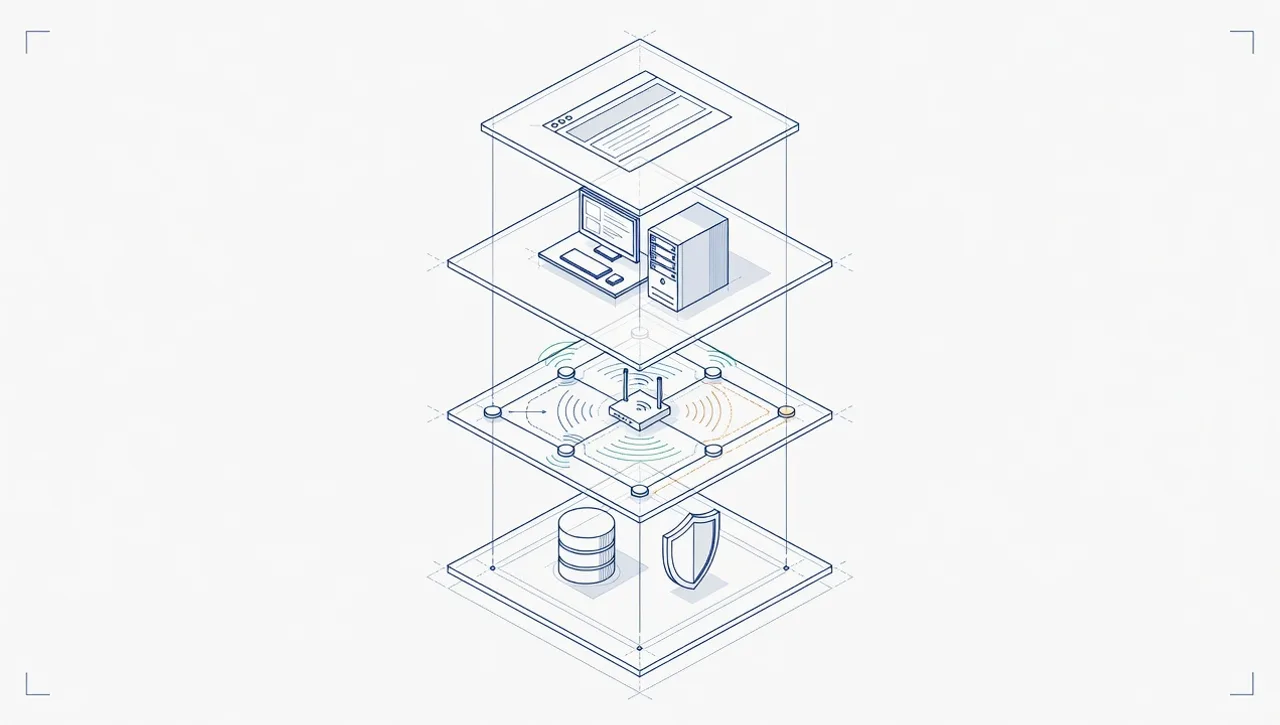
The short answer: it takes two parties, and knowing where the line sits saves your firm a season of frustration. The software vendor, Intuit, Thomson Reuters, Drake, Wolters Kluwer, whoever built what you run, owns the inside of the application: its features, its calculations, its data file formats, its bugs. Your IT provider owns everything the application stands on: the workstations, the server or hosted desktop, the network, the printers and scanners, the file shares, the backups, and the security wrapped around all of it. When something breaks, a good IT provider works the problem to the vendor boundary, then brings the vendor in with evidence, so your office manager never spends an afternoon relaying messages between two support desks.
This article covers how that split works in practice, what “accounting IT services” should actually include, and how to think about the hosted desktop question when your server starts showing its age. For the broader picture of what we do for firms like yours, start with our IT support for CPAs and financial advisors page.
Who supports what? The layered model
Think of your firm’s software as sitting on a stack, with a different party responsible for each layer.
The vendor’s layer: inside the application. How the software calculates, how its forms behave, what its error codes mean, when its data file is internally corrupted. You pay for this through your license or support plan, and no IT provider should pretend to replace it.
The IT provider’s layer: everything the application depends on.
- Workstations with enough memory, healthy storage, and current Windows
- The server or hosted desktop environment where company files and tax data live
- The network path between the two, wired, wireless, and remote
- Printing and scanning workflows, which accounting work leans on more than almost any other profession
- File shares and document management storage, with sane permissions
- Multi-user setup, so five people can be in the same system without stepping on each other
- Backups that are actually tested, covering the data files the vendor’s uninstaller will not save you from losing
- Security and access control around client financial data
The coordination layer, which is where firms get burned. A slow tax program can plausibly involve the workstation, the network, the server, or the application. Without one accountable party, the vendor blames the network, IT blames the software, and the partner who reported the problem becomes the project manager of their own outage. The IT provider’s job is to run the diagnosis, rule out their own layers with evidence, and then get the vendor on the phone with a narrowed question. That is the difference between “the software is slow, please advise” and “the same file opens fast on one workstation and slow on another, here is what changed.”
Firms commonly run some mix of QuickBooks Desktop and QuickBooks Online, a tax prep suite such as Lacerte, ProSeries, Drake, UltraTax CS, or CCH Axcess, and a document management tool alongside Microsoft 365. We support the environment those applications run on and coordinate with the vendors, and that division of labor covers the large majority of the problems firms actually experience.
Why do most “software problems” turn out to be environment problems?
Because the application is where the error appears, not necessarily where it started. The classic accounting firm complaints illustrate it:
Multi-user QuickBooks locking and performance. QuickBooks Desktop in multi-user mode is famously sensitive to where the company file lives and how workstations reach it. A company file on a proper server over wired connections is one experience. The same file in a OneDrive sync folder, on an underpowered machine doubling as a server, or reached over Wi-Fi is a different one, with lock conflicts, “abnormal exits,” and slow everything. Most of that is fixed underneath the application, not inside it.
Printing and scanning. Tax work generates more paper handling than almost any other office job: organizers, source documents, signature pages, filing copies. When the scanner stops feeding into the document management system or the printer mangles a form, the vendor’s support desk will correctly tell you it is not their problem. It is your IT provider’s problem, and at a firm it deserves to be treated as a priority, not an afterthought.
Remote access for reviewers. A partner reviewing returns from home, or seasonal preparers working outside the office, need the same speed as someone at a desk. The patterns that work keep compute and data together: remoting into an office machine or working on a hosted desktop. The pattern that fails is opening live company files across a VPN from a home PC, which is slow and risks file damage on a dropped connection. If remote review feels painful at your firm, this is the first thing to check.
Performance in general. Aging workstations, full disks, and background software contending for the machine all present to the user as “the tax program is slow this year.” Ruling those out takes minutes for an IT provider and can take a firm weeks of living with it.
What happens every year when the new tax software version ships?
Tax software has a rhythm no other business application does: a new version every single year, installed on every preparer’s machine, while prior year versions must stay installed and working, because you will amend and reference old returns for years.
Handled well, the annual upgrade is a scheduled project in November or December: confirm each workstation meets the new version’s requirements, clear disk space, update any server side components, install and verify on a pilot machine, then roll out to the rest with a rollback path. Handled badly, it is discovered in January when the new version refuses to install on three machines, the office is already busy, and the fix eats billable days at the worst possible time.
This is squarely the IT provider’s job, done in coordination with the vendor’s published requirements. If your current provider treats tax software season as a surprise every year, that is a planning failure, not a software failure.
What about hosted desktops? Where should the software live?
Sooner or later every firm hits this decision, usually when the office server ages out or a second location and remote work stretch the old setup past comfort. There are three honest options, and a provider should be able to walk you through all of them rather than defaulting to the one they sell.
Vendor hosting. Some vendors host their own applications, and some products are cloud native to begin with. Where it fits your application mix, it is the simplest path for that one application, though it covers only that application, and your files, other software, and workstations still need a home.
Third party accounting hosts. A category of providers sells hosted desktop services for accountants specifically, running tax and accounting applications on shared infrastructure. It works, and for some firms it is the right call. Ask hard questions about performance during peak season, support responsiveness, and what happens to your data if you leave.
An MSP managed hosted desktop on Azure. Your applications, files, and desktops run in a Microsoft Azure environment your IT provider builds and manages. Everything lives in one place, remote and seasonal staff get the same fast desktop from anywhere, and the same party that answers your support calls also runs the environment, so there is no new finger pointing seam. This is the option we build for firms that want off the office server treadmill, and our Azure services page covers how those environments are put together.
Which one is right depends on what you run, how seasonal your staffing is, and your budget. A firm running one cloud native product has a different answer than a firm juggling QuickBooks Desktop files, a desktop tax suite, and twenty years of client documents. The wrong answer is deciding by default, which usually means limping the old server through one more season.
What should accounting IT services include for a firm your size?
For most firms in the roughly 10 to 50 employee range, fully managed IT is the right shape: one provider owns the workstations, server or hosted desktop, network, backups, security, and vendor coordination, for a flat monthly fee. Braintek’s managed packages run $150 to $250 per device per month plus $15 to $35 per mailbox, with Microsoft licensing billed separately; the full breakdown for firms specifically is in our managed IT cost guide for CPA and accounting firms. Larger firms, up to around 1,500 employees, usually fit co-managed IT better, where your internal staff keeps day to day ownership and we cover security, projects, and escalations behind them.
Whatever the shape, the accounting specific parts of the checklist are:
- Tested backups of company files, tax data, and Microsoft 365, not just “backup software installed”
- A documented security program, since firms handling client financial data are in scope for the FTC Safeguards Rule
- The annual tax software upgrade handled as a scheduled project
- Multi-user and remote access set up in patterns that stay fast
- Vendor coordination written into the service, so “call Intuit” is never the whole answer
And in IT support for accountants, response time matters more than almost anywhere else, because your deadlines are statutory. Braintek’s phones are typically answered in about 60 seconds and emailed tickets typically get a first response within about 2 hours, measured typicals rather than guarantees, with staff in Houston, DFW, and the Philippines. The full service scope is on our managed IT services page.
Who does this for accounting firms in Houston and DFW?
Braintek has supported Texas businesses since 2002, including the servers, workstations, file shares, and hosted environments that accounting and tax applications depend on. We support the environment your software runs on, coordinate with your vendors so your staff never plays telephone between support desks, and plan the annual upgrade cycle so January is about returns, not installs.
If you are comparing providers, our guide on how to choose an MSP for a CPA or accounting firm gives you the questions to ask any candidate, ours included. And if the immediate question is whether your data would survive a bad day, start with our guide on backing up QuickBooks, tax software, and Microsoft 365, backups are the layer no vendor support plan covers for you. If filing season is close, the tax season IT readiness checklist covers the version upgrades and capacity work in timeline order. When you are ready, tell us what your firm runs and where it lives today, and we will show you what the environment underneath it should look like.