Essential Windows 10 Shortcuts
| Shortcut | What it does |
|---|
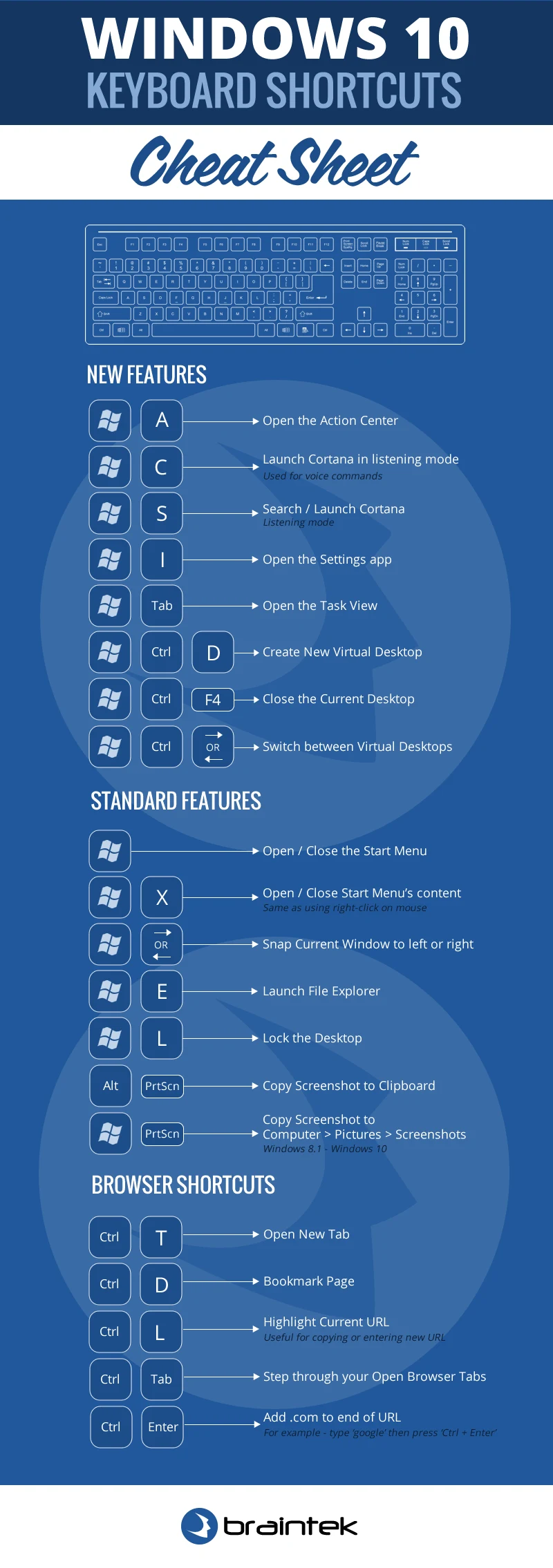
| Win | Open or close the Start menu |
| Win + A | Open the Action Center |
| Win + I | Open Settings |
| Win + E | Open File Explorer |
| Win + D | Show or hide the desktop |
| Win + L | Lock your PC |
| Win + . | Open the emoji panel |
| Win + V | Open clipboard history |
Screenshots & Snipping
| Shortcut | What it does |
|---|
| Win + Shift + S | Capture part of the screen (Snip & Sketch) |
| Print Screen | Capture the entire screen to the clipboard |
| Win + Print Screen | Save a full screenshot to the Pictures folder |
| Alt + Print Screen | Capture only the active window |
Window Management
| Shortcut | What it does |
|---|
| Win + Left / Right | Snap the window to the left or right half |
| Win + Up / Down | Maximize, restore, or minimize the window |
| Win + Tab | Open Task View |
| Alt + Tab | Switch between open apps |
| Win + number (1–9) | Open or switch to the app in that taskbar position |
Virtual Desktops
| Shortcut | What it does |
|---|
| Win + Ctrl + D | Create a new virtual desktop |
| Win + Ctrl + Left / Right | Switch between virtual desktops |
| Win + Ctrl + F4 | Close the current virtual desktop |
System & Productivity
| Shortcut | What it does |
|---|
| Ctrl + Shift + Esc | Open Task Manager directly |
| Win + X | Open the power-user menu |
| Win + P | Choose a presentation / second-display mode |
| Win + R | Open the Run dialog |
| Win + S | Open Search |
Universal Editing Shortcuts
| Shortcut | What it does |
|---|
| Ctrl + C / X / V | Copy / Cut / Paste |
| Ctrl + Z / Y | Undo / Redo |
| Ctrl + A | Select all |
| Ctrl + F | Find |
| Ctrl + S | Save |
| Ctrl + P | Print |
Grab the printable one-page PDF below and keep it by every desk. Still on Windows 10? Microsoft ended support in October 2025, so those PCs no longer get security updates. Our managed IT services team plans and runs Windows 11 upgrades for Houston and DFW businesses. Book a discovery call and we will map out yours.
More Microsoft shortcuts: Windows 11 · Excel · Word · Outlook