
| Shortcut | What it does |
|---|---|
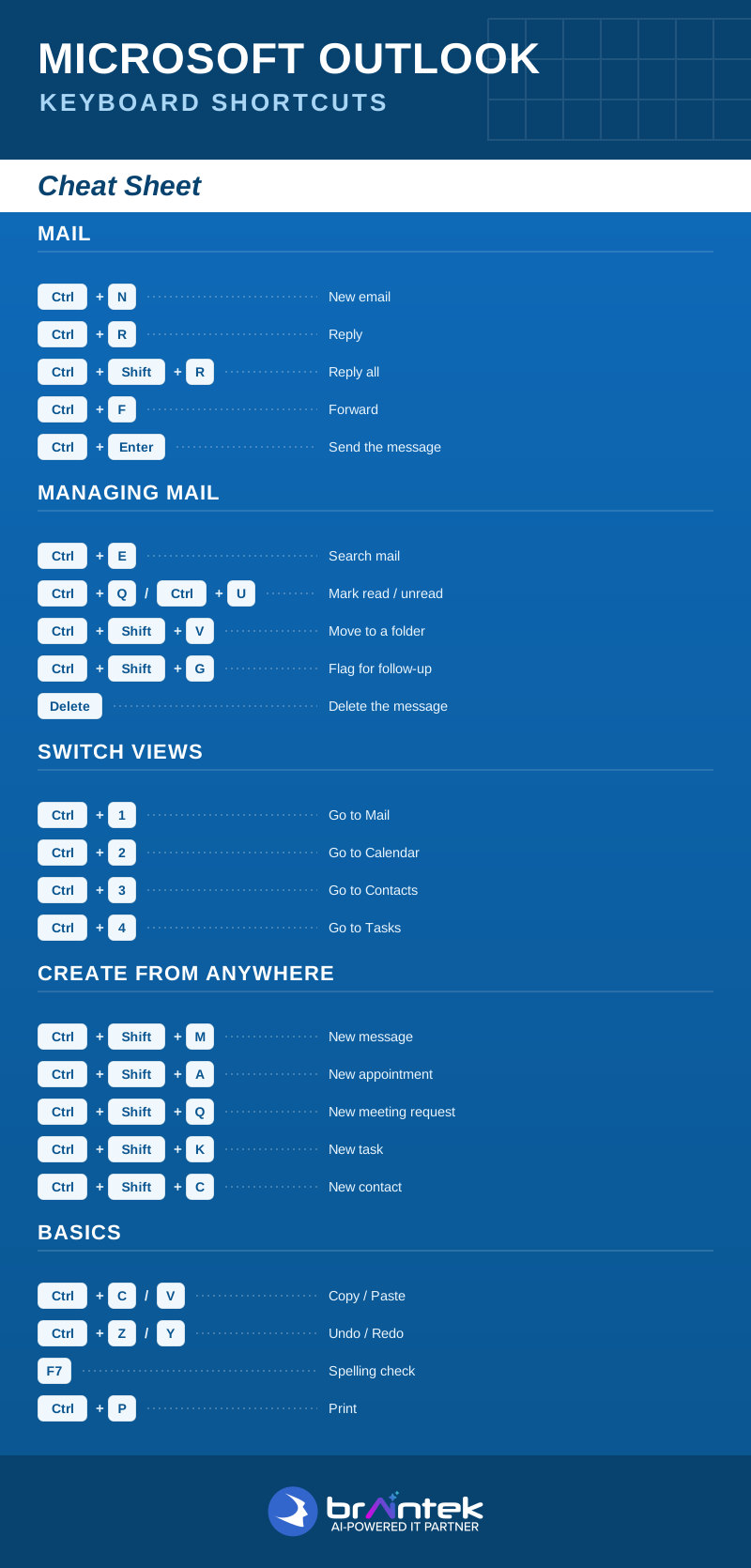
| Ctrl + N | New email |
| Ctrl + R | Reply |
| Ctrl + Shift + R | Reply all |
| Ctrl + F | Forward |
| Ctrl + Enter | Send the message |
Managing Mail
| Shortcut | What it does |
|---|---|
| Ctrl + E | Search mail |
| Ctrl + Q / Ctrl + U | Mark read / unread |
| Ctrl + Shift + V | Move to a folder |
| Ctrl + Shift + G | Flag for follow-up |
| Delete | Delete the message |
Switch Views
| Shortcut | What it does |
|---|---|
| Ctrl + 1 | Go to Mail |
| Ctrl + 2 | Go to Calendar |
| Ctrl + 3 | Go to Contacts |
| Ctrl + 4 | Go to Tasks |
Create From Anywhere
| Shortcut | What it does |
|---|---|
| Ctrl + Shift + M | New message |
| Ctrl + Shift + A | New appointment |
| Ctrl + Shift + Q | New meeting request |
| Ctrl + Shift + K | New task |
| Ctrl + Shift + C | New contact |
Basics
| Shortcut | What it does |
|---|---|
| Ctrl + C / V | Copy / Paste |
| Ctrl + Z / Y | Undo / Redo |
| F7 | Spelling check |
| Ctrl + P |
Open the full one-page version above to view or print, and keep it next to the keyboard — a faster inbox adds up fast.
More Microsoft shortcuts: Excel · Word · PowerPoint · Windows 11